

"I started with a faded photo of my grandparents that had been sitting in a drawer for years. The comparison made it easy to keep the version that still looked like the original, just clearer."
Marisol D.Family history researcher
Continue with a tool that fits the next step in your image workflow.
Restore old photos online when scratches, fading, blur, or low contrast make a memory harder to see. Start with the image you have and compare the result before you download.
Use colorization for black-and-white photos when it suits the image, or keep the original character in view with a cleaner, clearer restoration.
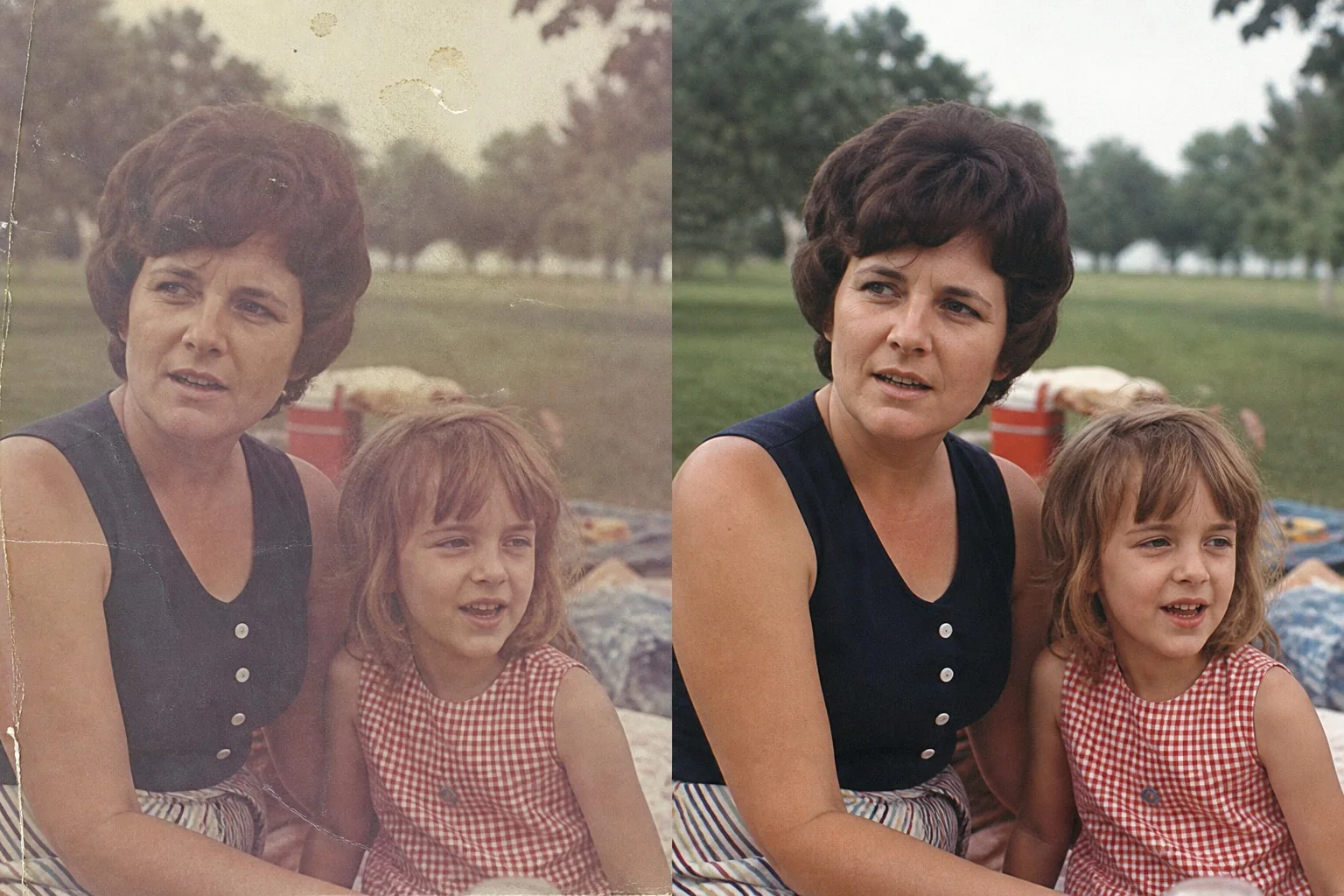
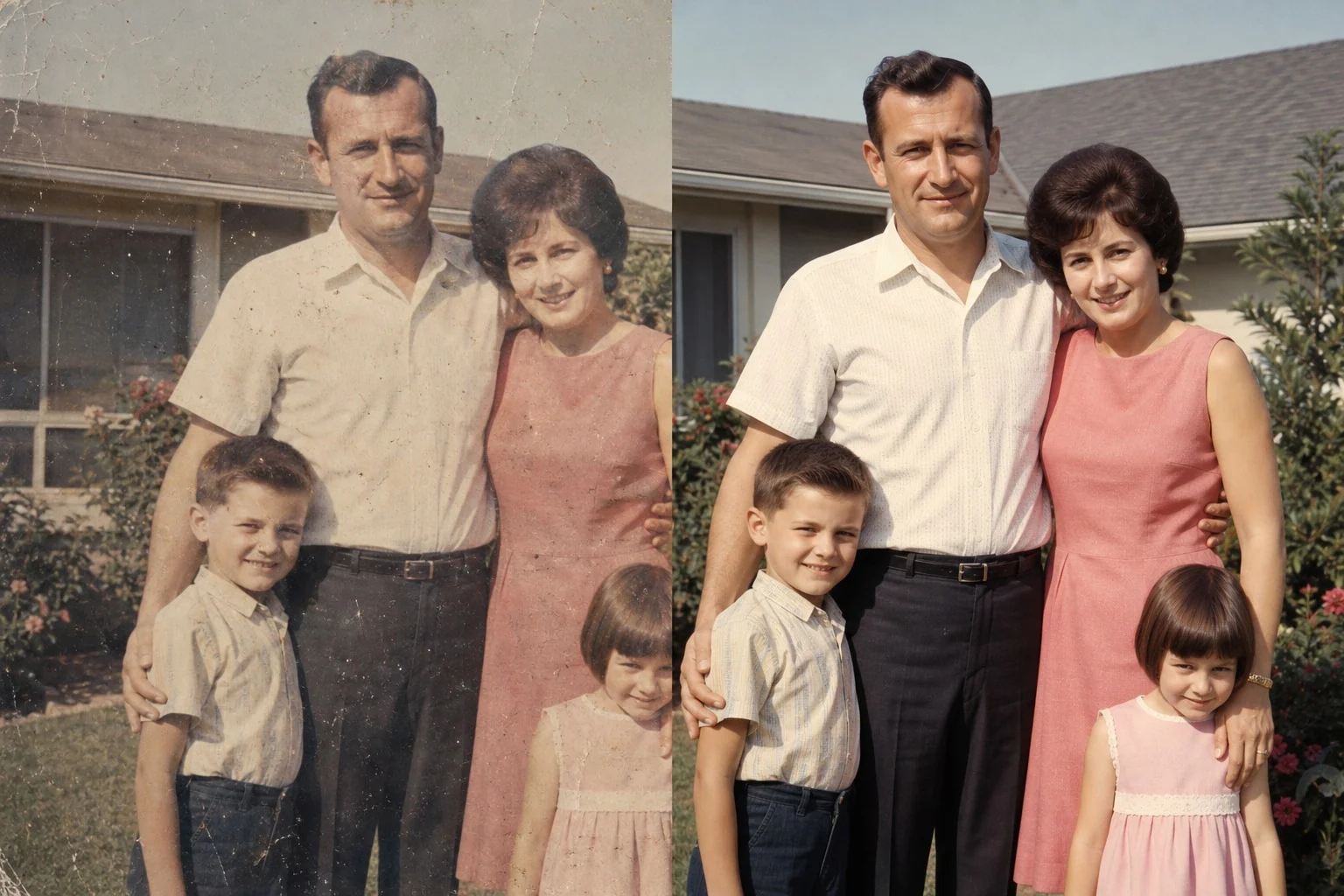
If you are learning how to restore old photos, start with the visible wear: scratches, fading, stains, low contrast, and soft detail. Review the result beside the original before you save it.
Bring back clearer facial detail in soft or low-resolution portraits. For black-and-white photos, choose colorization when a natural colour result suits the memory.
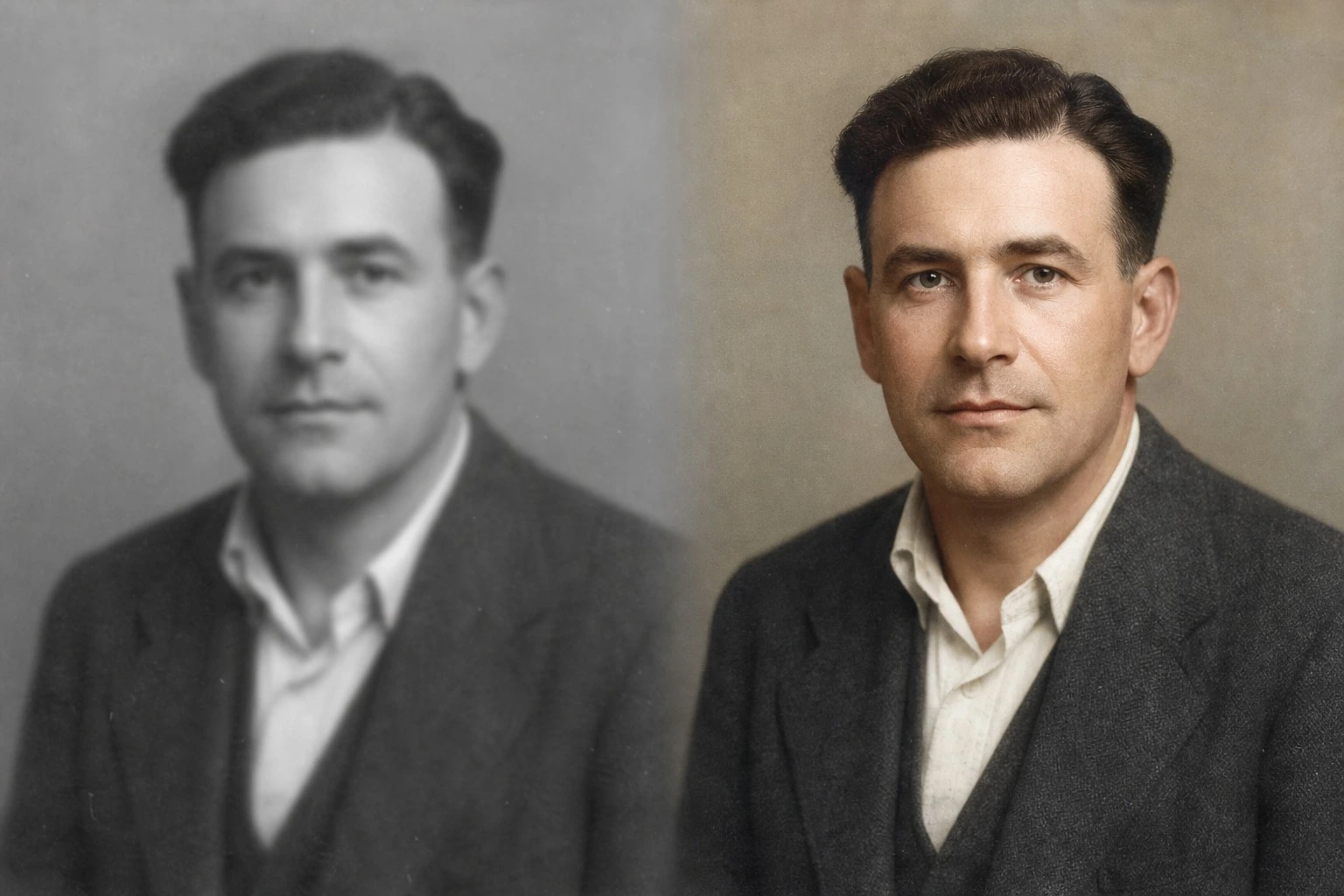
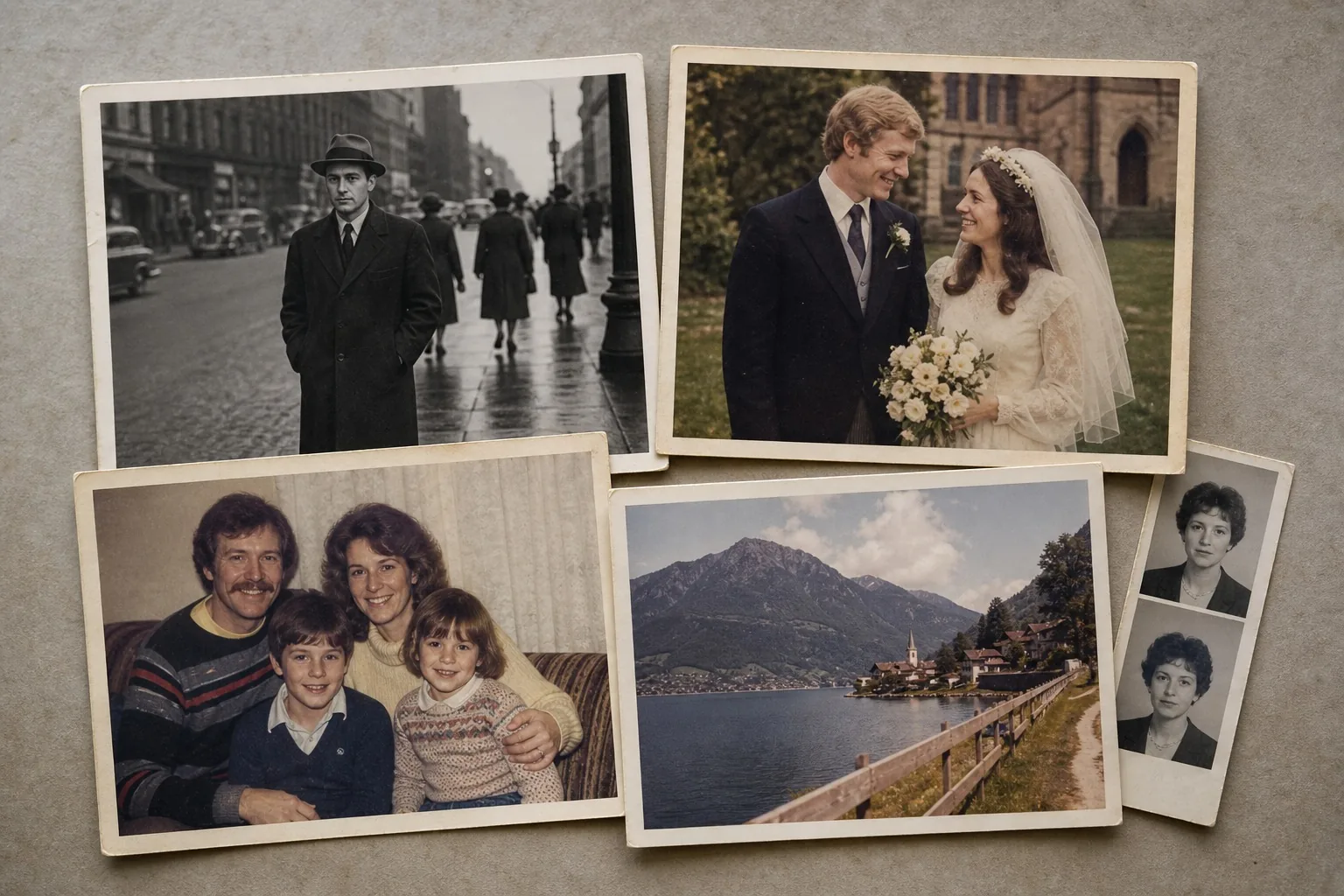
Restore family portraits, wedding prints, school photos, travel snapshots, and historical images in one browser workflow. Each source photo remains different, so inspect the result before downloading.
How to restore old photos can be as simple as uploading your image, selecting the options that fit it, and comparing the result. There is no traditional photo-editing workflow to learn before you start.
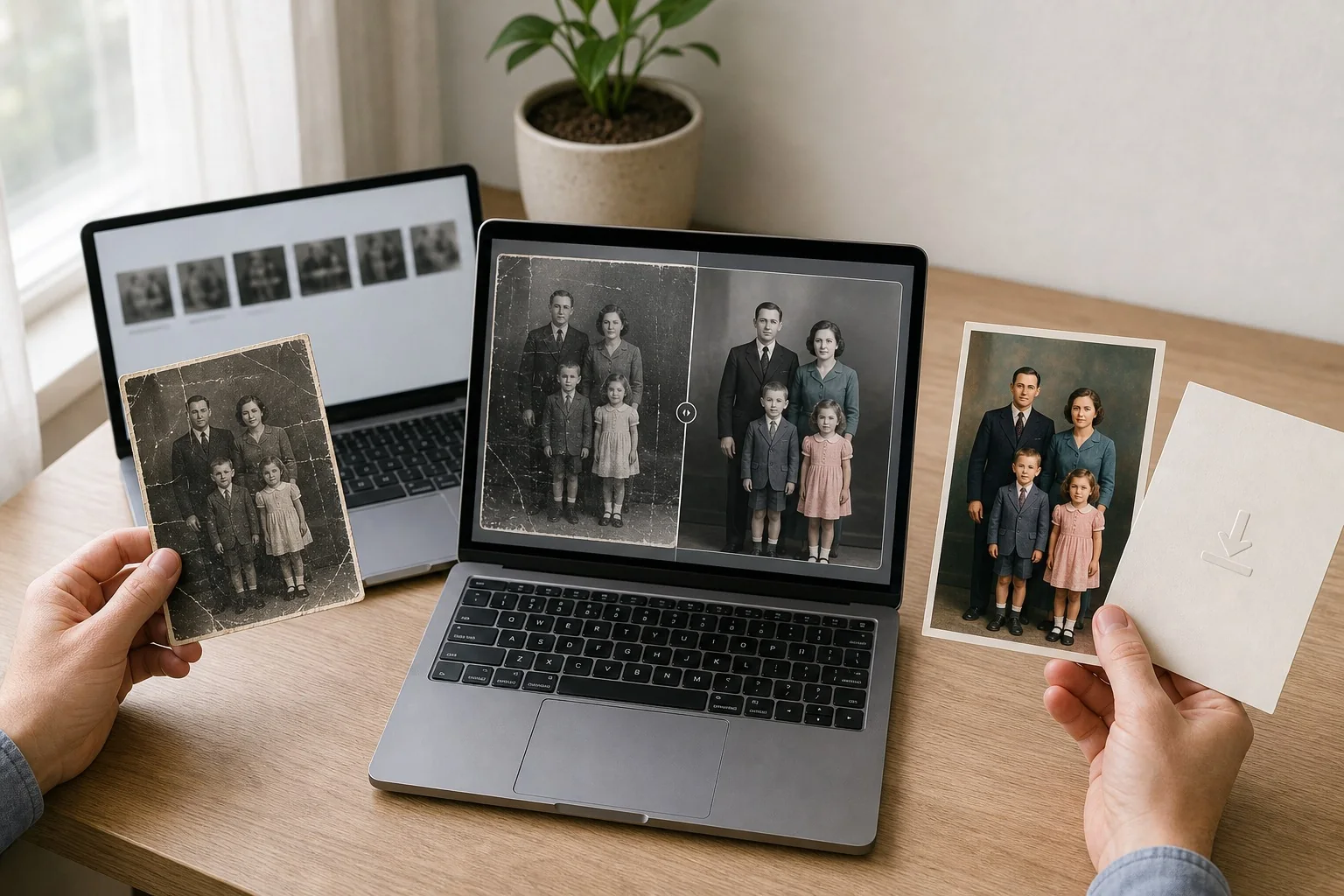
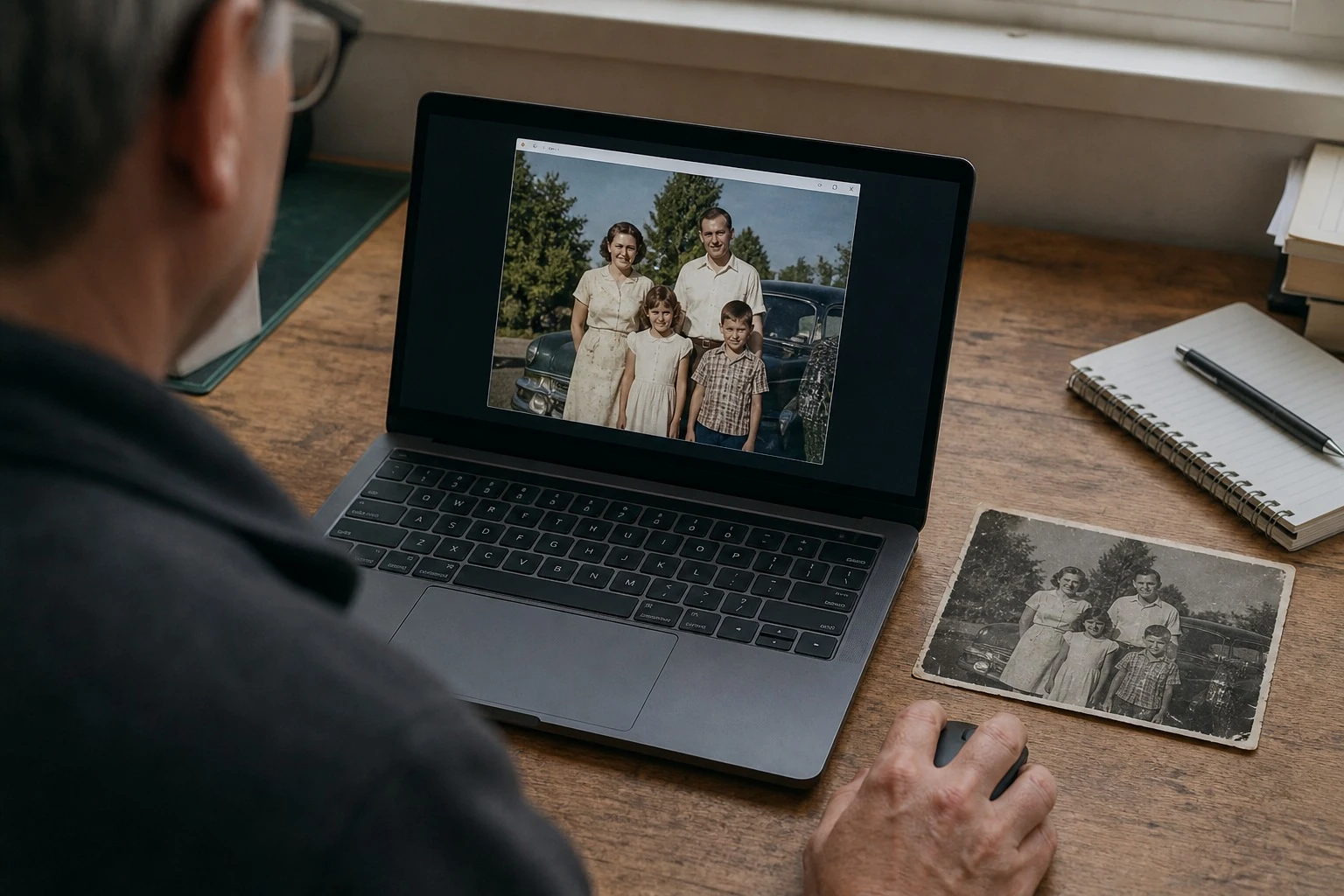
A simple restore action keeps the process focused on the photo, not a complicated editing panel. Use the before-and-after view to check clarity, colour, and detail before you download.
A carefully restored print can make it easier to share the faces, places, and moments in a family album. Keep the original close at hand and choose the version that still feels true to it.
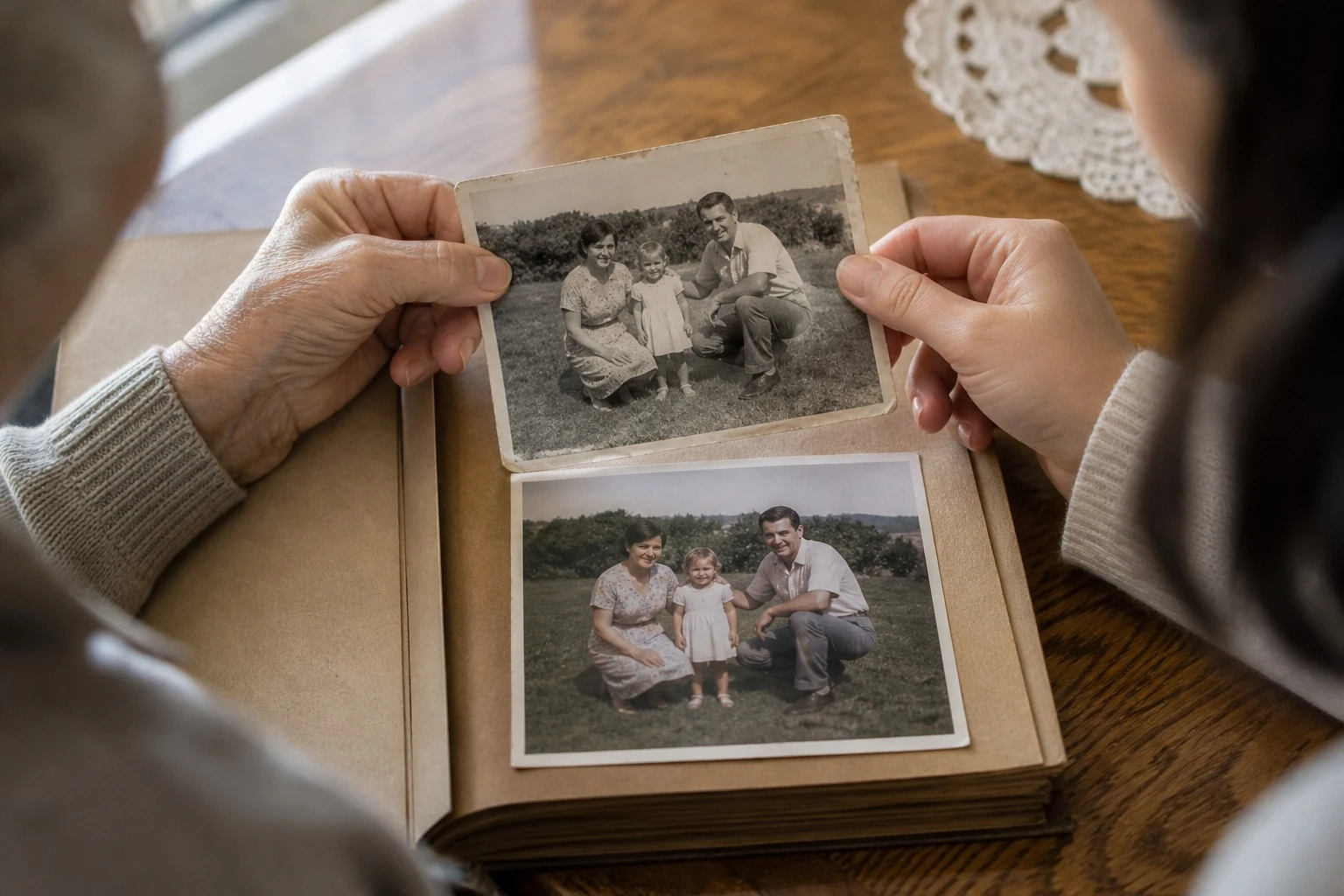
"I started with a faded photo of my grandparents that had been sitting in a drawer for years. The comparison made it easy to keep the version that still looked like the original, just clearer."
"We scan a lot of prints with dust, weak contrast, and soft edges. I like being able to review each result before adding it to the reference folder instead of treating every restoration as final."
"An old black-and-white wedding portrait was the one photo the family wanted to include. I tried the color option, compared it with the original, and had a version that felt right for the album."
"The useful part for me is not having to learn a full editing program for one family photo. I upload the scan, check the before-and-after view, and keep the original beside it while I work."
"We were preparing a short local-history piece and had only a worn copy of the photograph. It helped bring the faces forward, but I still checked every small detail against the original print before publishing."
"I use it one image at a time on old travel snapshots. Some photos only need a little cleanup, so being able to compare the result before downloading keeps me from overdoing it."
Follow these three simple steps to restore old photos, review the changes, and keep the version that feels right to you.
Choose the photo you want to restore from your device. This is the first step in how to restore old photos while keeping the original available for reference.
Select whether to colorize the photo and choose the available upscale level before you begin the restoration.
Use the before-and-after comparison to inspect the restored result, then download the version you want to keep.
Give childhood photos, grandparents' portraits, and faded wedding prints a clearer version to share or print.
Improve scanned film prints and older snapshots while keeping their original character visible for your collection.
Prepare clearer copies of historic photographs for reference, research, or a preservation workflow. Review important details against the original.
Use restoration to improve visible wear, fading, and softness while reviewing the result against your original photo.
Upload a photo, choose the available options, and let the restoration process handle the heavy lifting.
Inspect the restored version beside the original so you can decide whether it is ready to download.
Work through family albums, vintage prints, and scanned snapshots one photo at a time in your browser.
Old photo restoration can improve visible scratches, fading, low contrast, soft facial detail, and other common signs of age. Results depend on the information still present in the original image.
Upload your photo, choose the options that fit it, and review the restored result beside the original.